

First
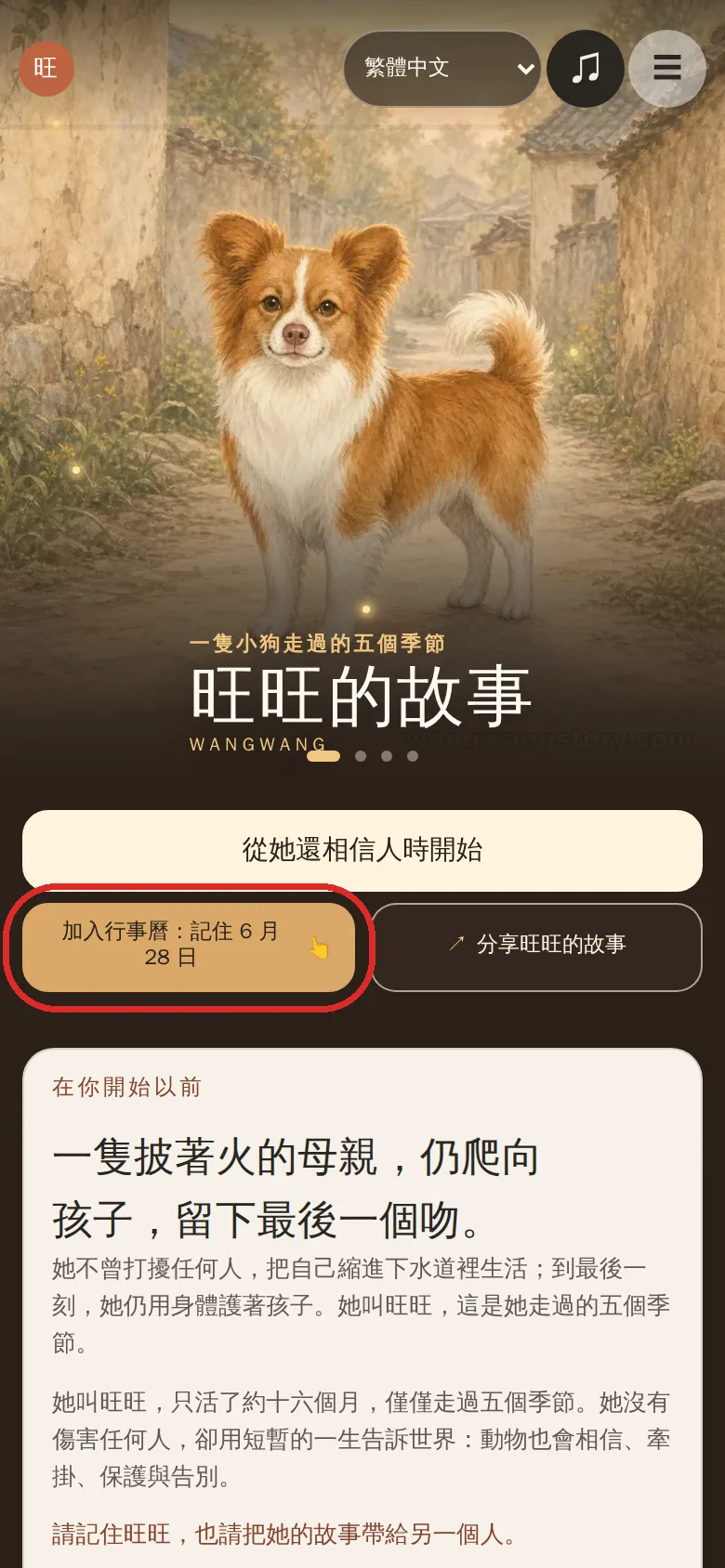
The cover
Stays on this pageOpen the story's front page. Right below the cover you'll find "Add to calendar: Remember June 28".
Tap it to open the remembrance panel, then tap once more in the middle of the panel to reach the calendar choices.
Reading her story, you may feel angry, sad, unable to look away. So did we.
Everything we are doing today — sharing, forwarding, spreading the word, putting her on street billboards — may, three months from now, slowly be forgotten.
Wangwang, this brave mother, deserves to be remembered. She was not of our species, but her devotion to life, and her courage as a mother, were the same as ours.
So we chose something slower, but harder to forget: the calendar in your phone. Set June 28 once, and it rings every year — and everyone in the world who remembers her is reminded on the same day.

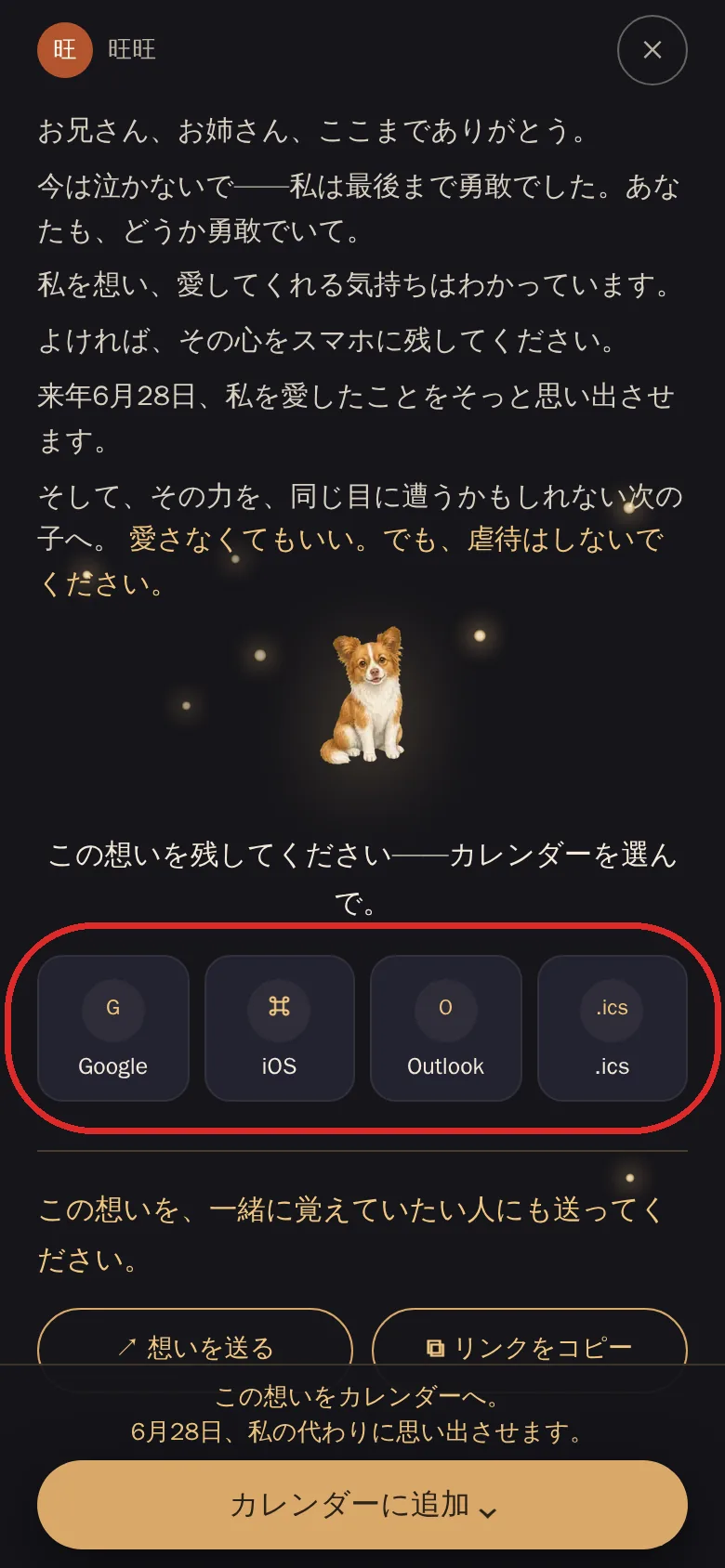
No matter where you enter from, you will end up at these four buttons.
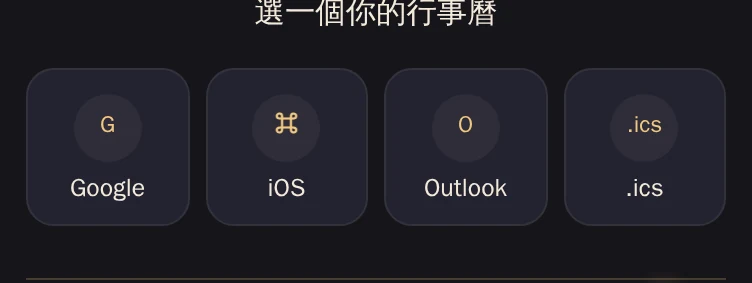
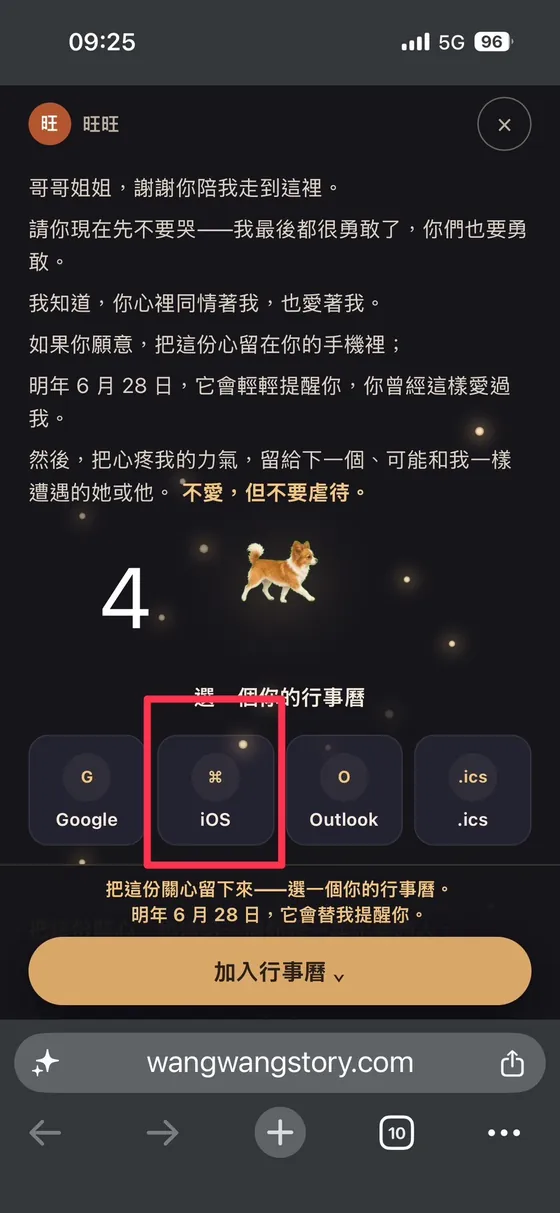
When you see this screen, just tap the one that matches your device: iOS for iPhone, Google for Android, Outlook for Outlook on a computer, and .ics for any other calendar app. That one tap adds June 28 to your calendar.
If nothing happens when you tap, you are probably inside a social app's built-in browser — scroll down to "Can't open it inside Facebook or LINE?" You are only one step away.
All four entry points do the same thing: every June 28, they remind you of Wangwang. Pick whichever feels most natural.
First
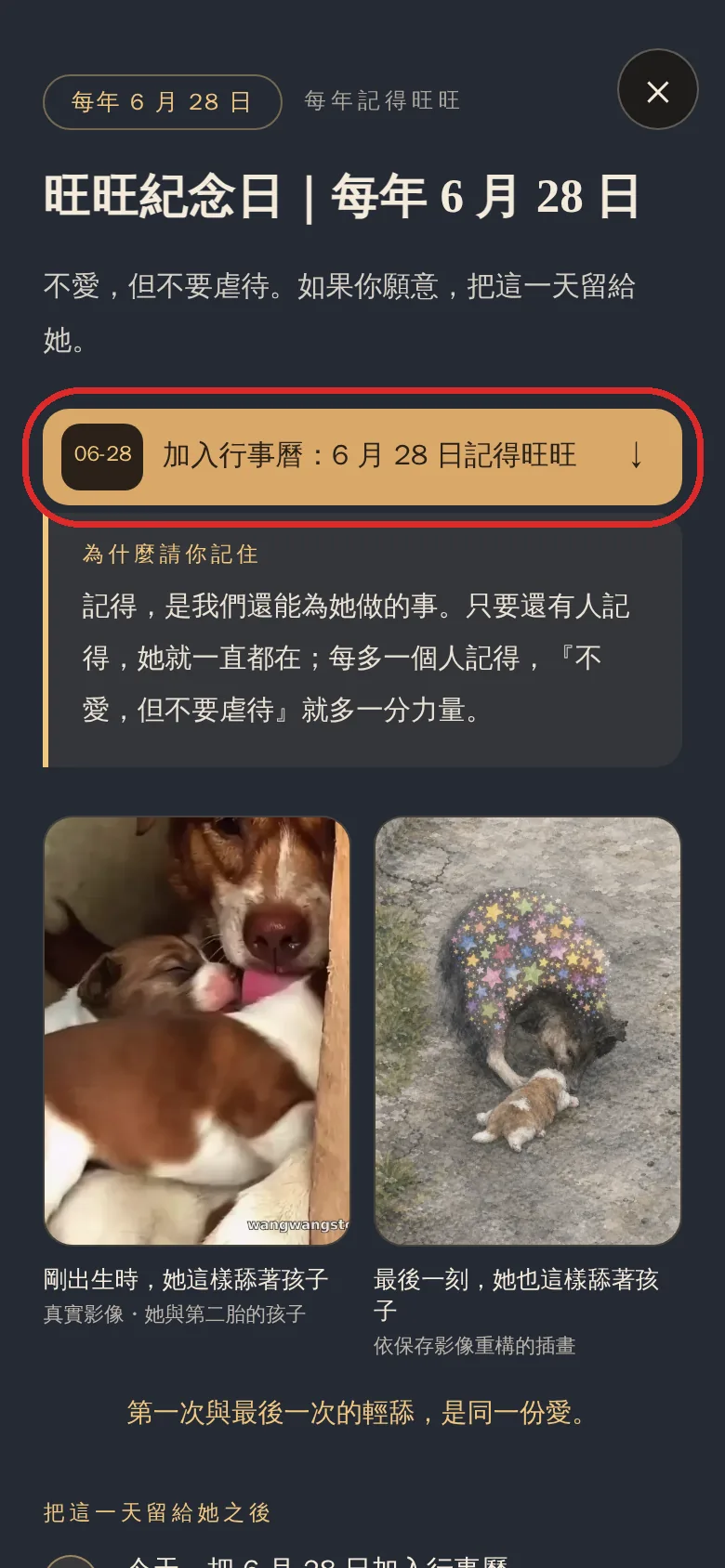
Open the story's front page. Right below the cover you'll find "Add to calendar: Remember June 28".
Tap it to open the remembrance panel, then tap once more in the middle of the panel to reach the calendar choices.
Second
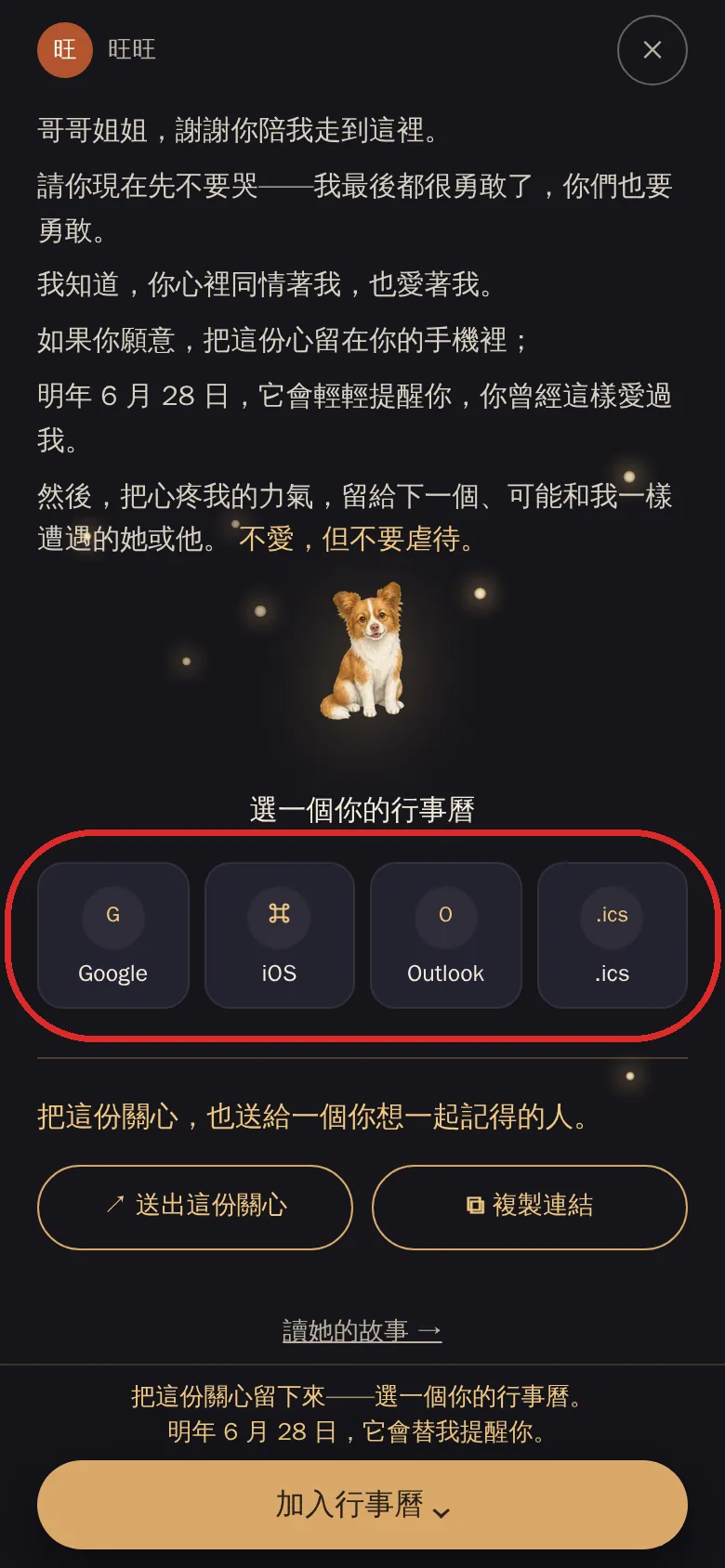
While you read, a little Wangwang peeks out from the bottom-left corner of the screen, with the words "Tap to light it for her".
This one is different from the other three: tapping it leaves the story and takes you to the light page. That page is a short letter from Wangwang to you, and the four calendar buttons sit right below the letter — no extra step in between.

Where the second one lands
The four calendar buttons are right below the letter, and a persistent "Add to calendar" bar sits at the very bottom of the page.
To return to the story, tap "Read her story" at the bottom of the page.
If all you want is to ask one person to keep this day — without asking them to read the whole story first — this page is the shortest thing to send.
Third
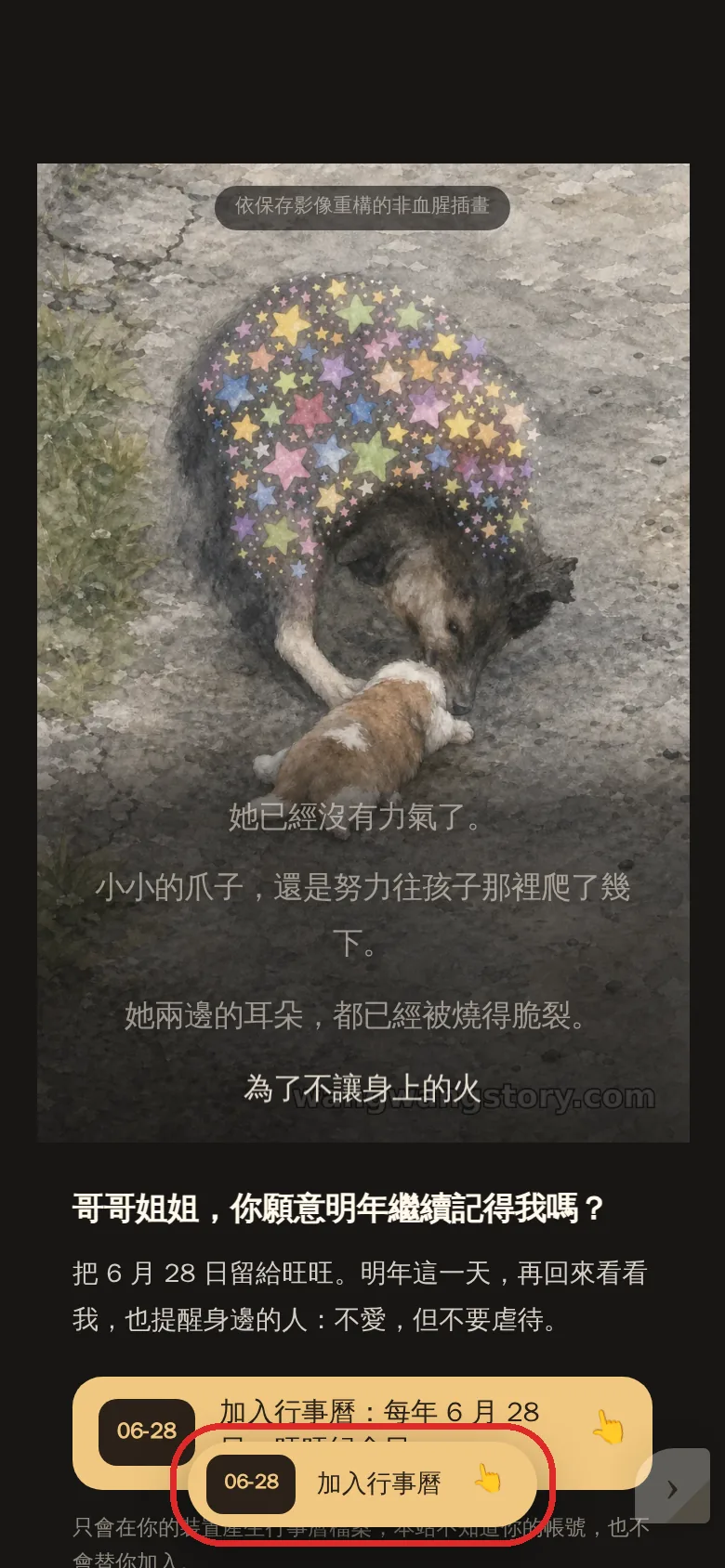
When you reach the finale, an "Add to calendar" bar floats up from the bottom of the screen and stays there as you read.
Tapping it opens the same remembrance panel as the one on the cover.
Fourth
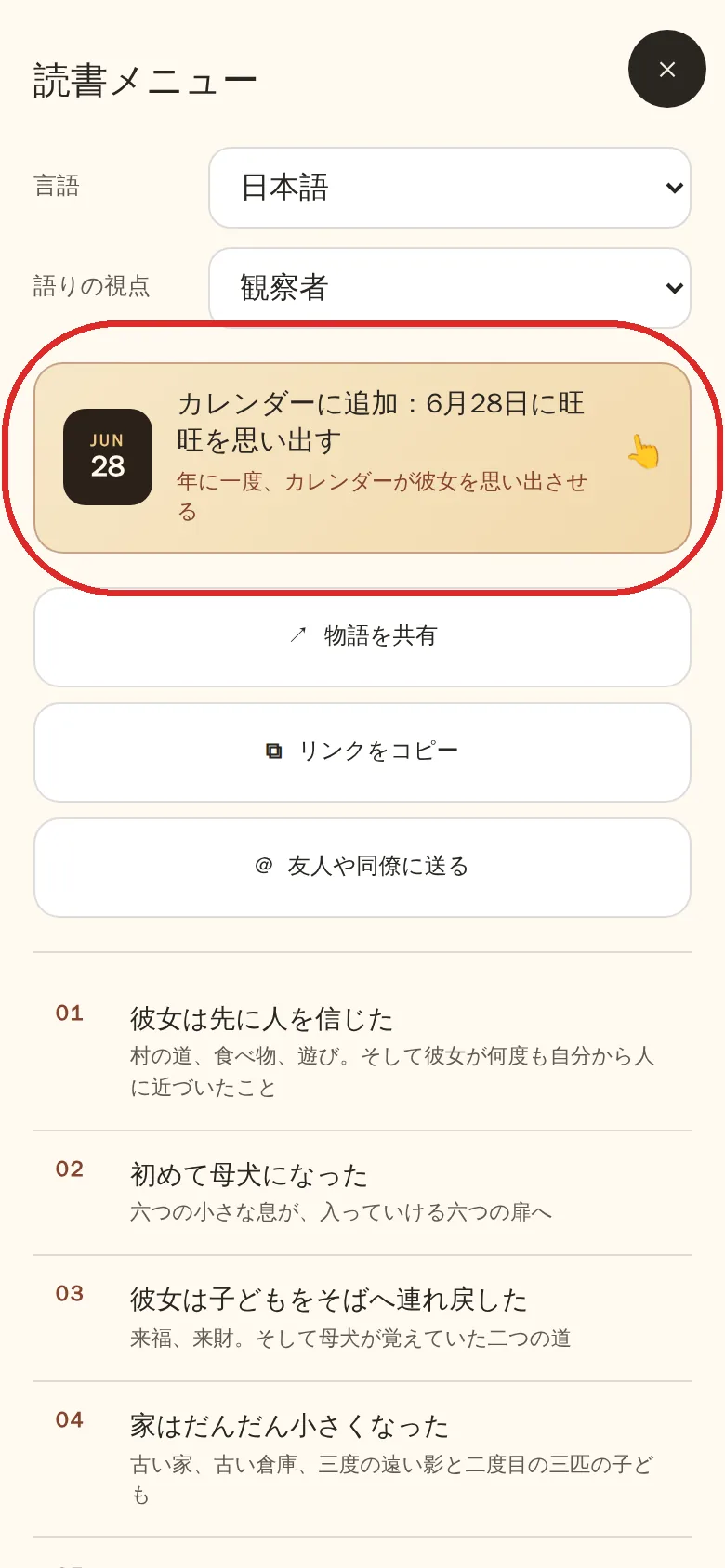
Open the menu icon in the top-right corner: alongside language and point of view, there is a calendar button, with the three share buttons right below it.
This is the only entry that is there the whole time — you can reach it from any scene.
The first, third, and fourth entries above all end at this screen.
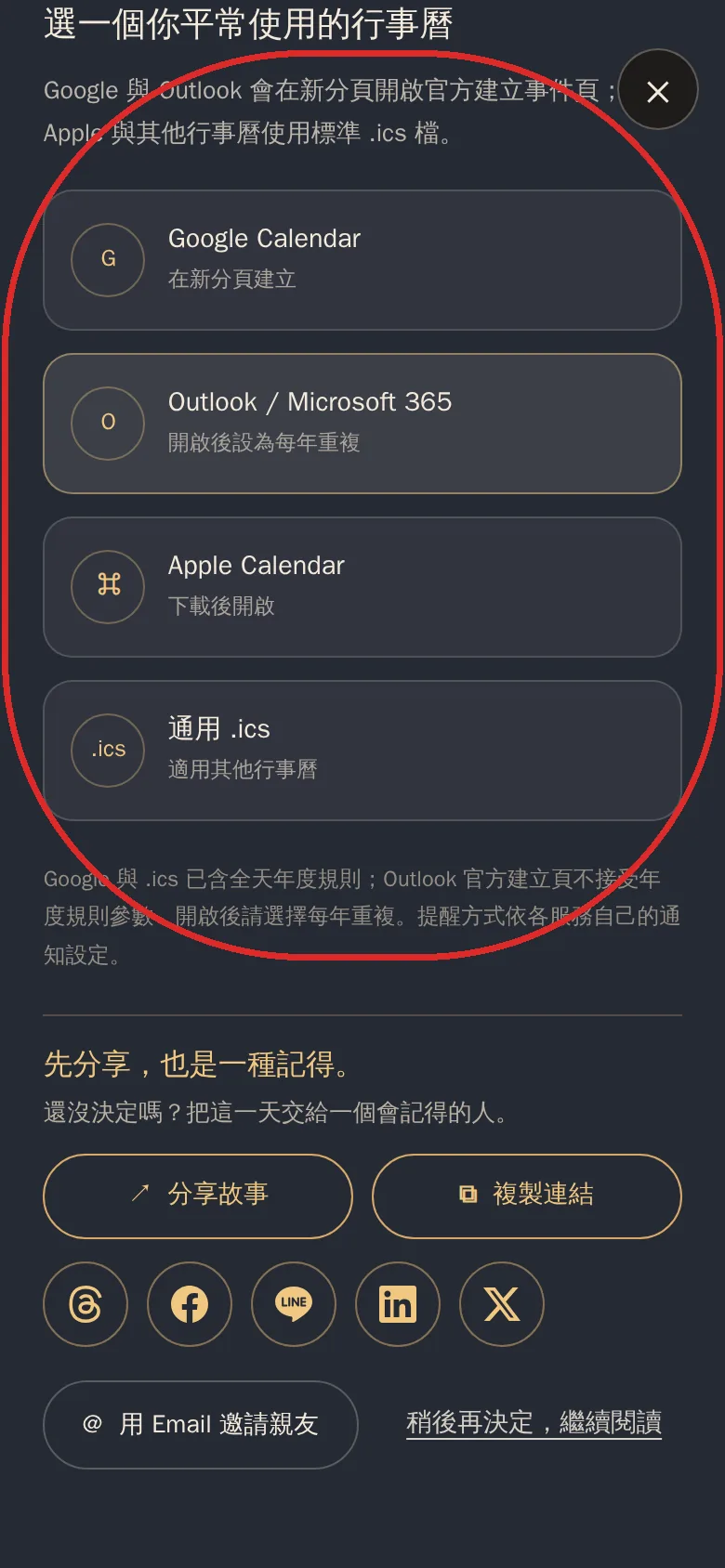
| Option | What happens when you tap | Worth knowing |
|---|---|---|
| Google Calendar | Opens Google's official event-creation page | Yearly repeat already included — just save |
| Outlook / Microsoft 365 | Opens Outlook's official event-creation page | Please set it to repeat yearly yourself |
| Apple Calendar | Downloads and opens a calendar file | Yearly repeat already included |
| Universal .ics | Same as above, for any other calendar app | Yearly repeat already included |
Outlook's event-creation page does not accept the yearly-repeat setting we pass along, so after it opens, please choose yearly repetition once yourself. The other three don't need this.
This is an all-day event, not an alarm for a specific time. When it reminds you depends on your own calendar's notification settings.
This part matters most. Many people get stuck here and give up when nothing seems to happen — when they were only one step away.
When you open a link inside social apps like Facebook, Instagram, Threads, LINE, WhatsApp, or WeChat, it doesn't open in your phone's real browser but in the app's own built-in, stripped-down browser. It has no download manager, so the calendar file may not save.
The fix is simple: hand this page over to your phone's real browser first, then tap once more. Below are the full seven steps for iPhone (the screenshots start from inside LINE; other social apps put things in slightly different places, but the method is the same).
Inside the social app's built-in browser, look for the three dots or a similar menu icon at the bottom right of the screen.
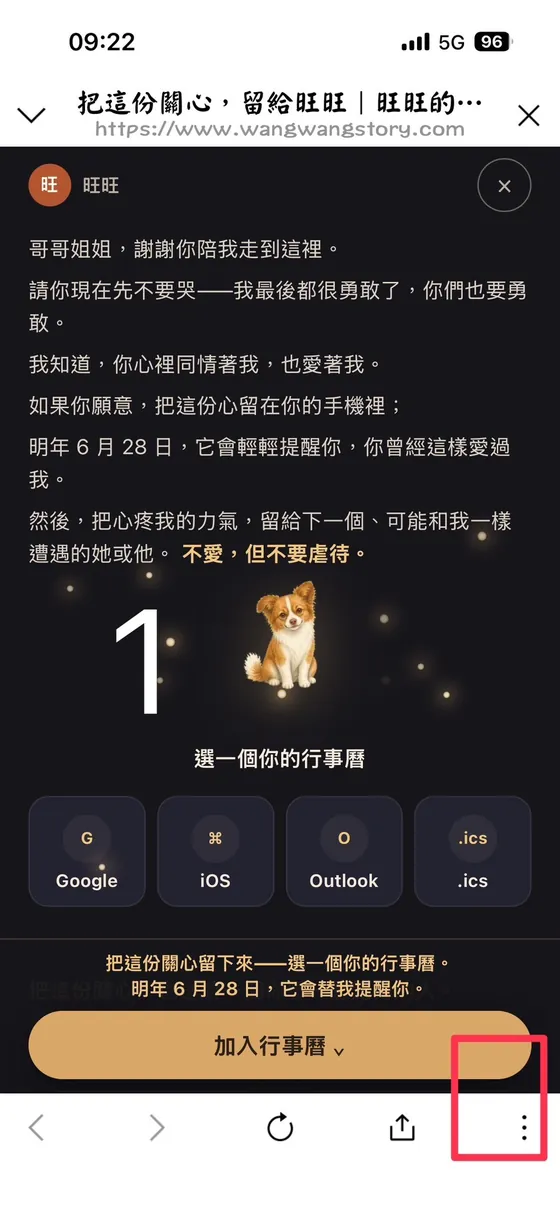
This hands the same page over to Safari. Only after you jump out do you get full download capability.
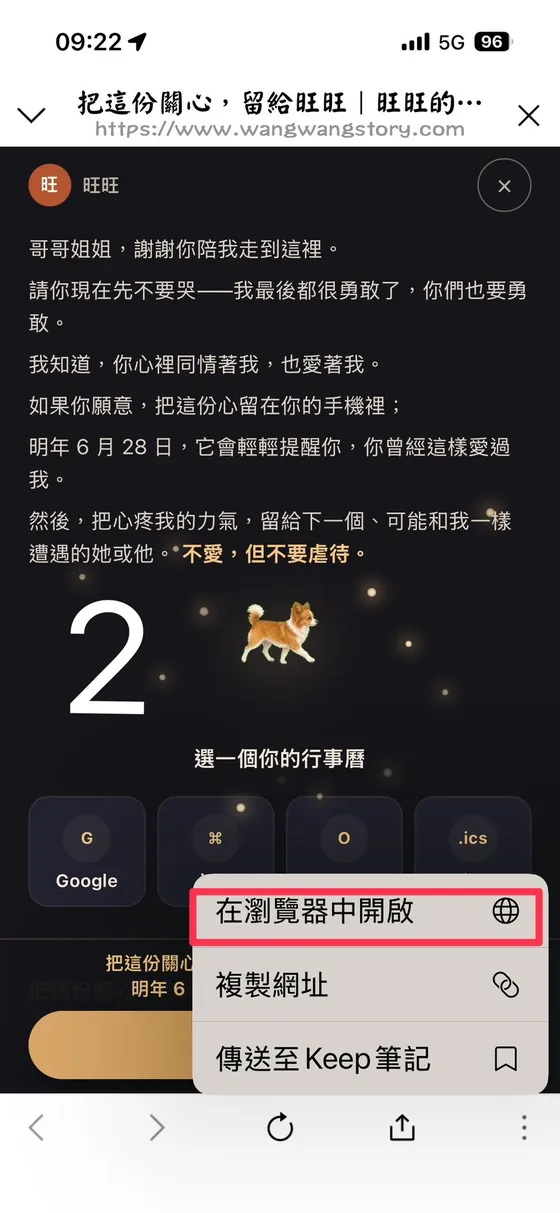
When an address bar appears at the bottom of the screen, you've made it out.
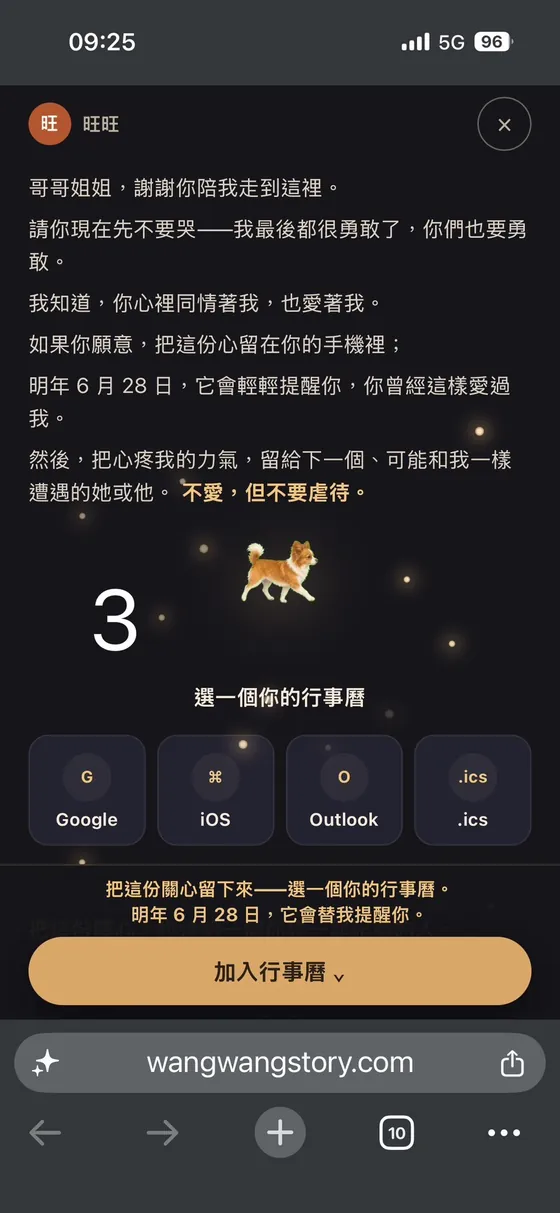
The second of the four. Apple Calendar uses a standard calendar file.
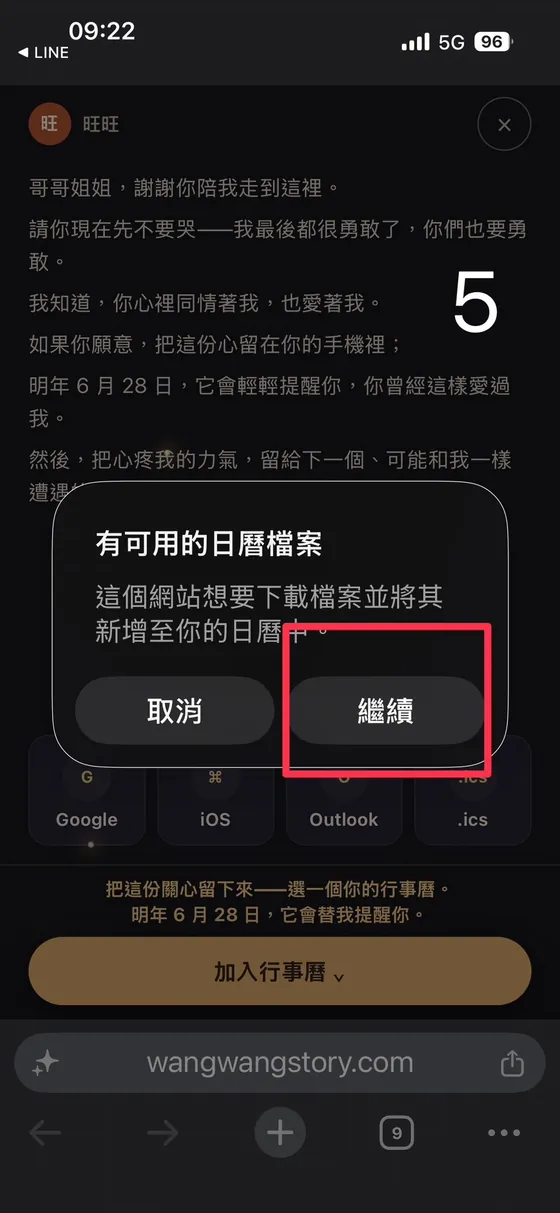
This is your iPhone asking whether to download it and add it to your calendar.
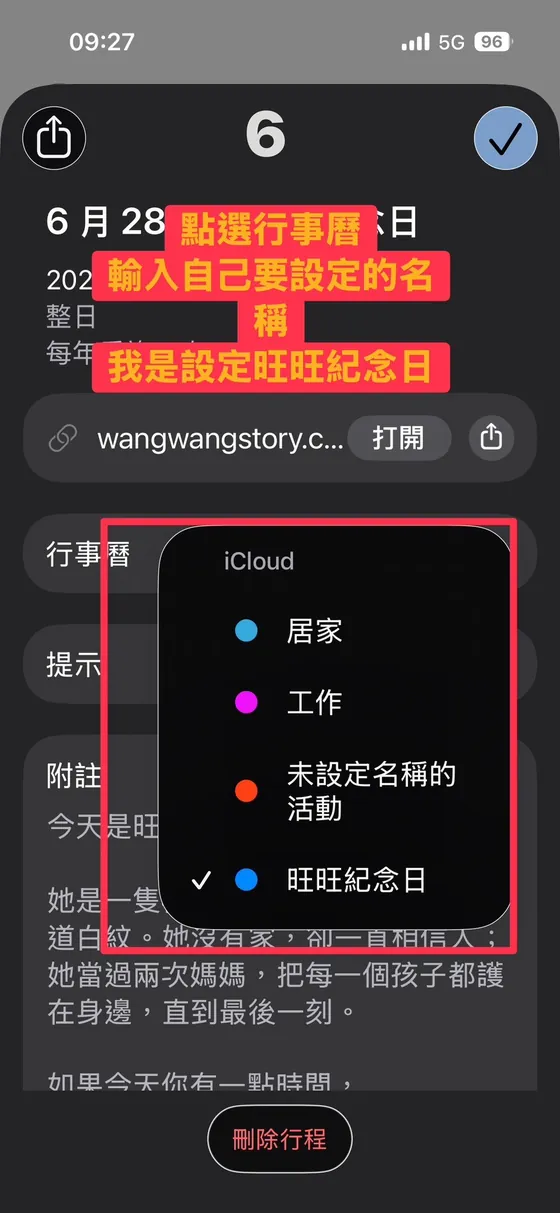
You can first create a calendar called "Wangwang Remembrance Day", so every year's reminder is kept there. After choosing, be sure to tap the checkmark in the top right — only then is it really saved.
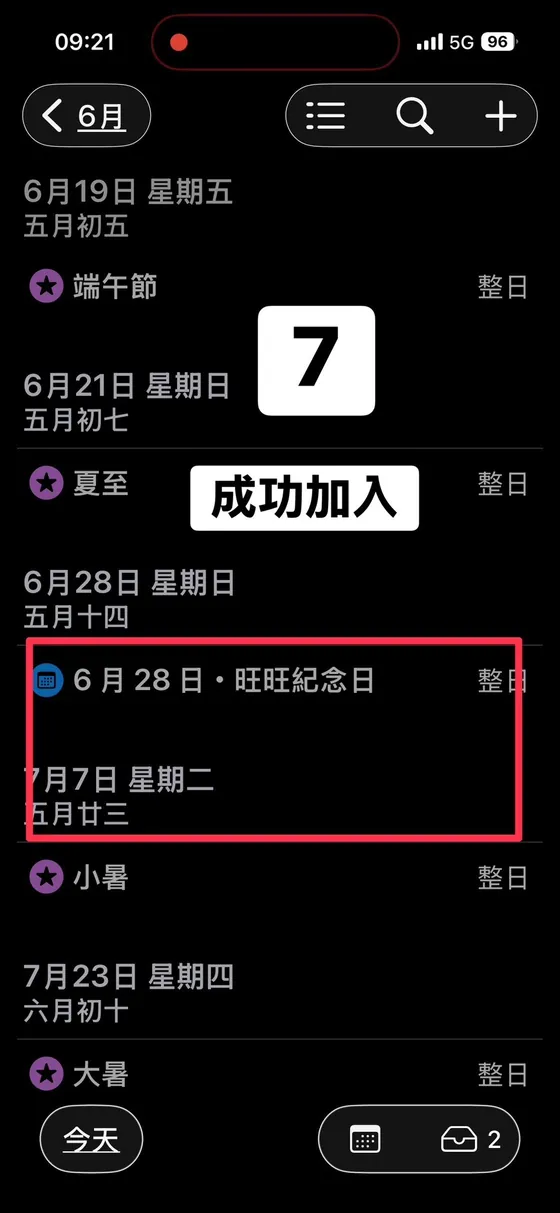
Back in your calendar, you'll see her name on June 28 as an all-day event.
If you opened this page in your phone's browser to begin with, just start from step four. The first three steps are only needed inside a social app's built-in browser.
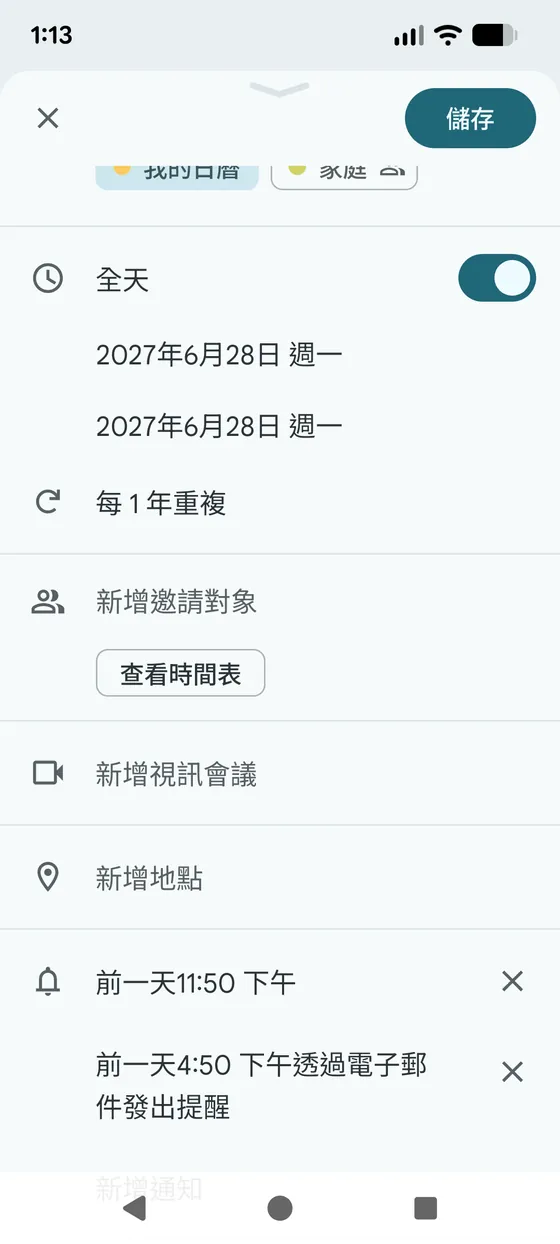
After you choose Google, the event's settings are filled in automatically — nothing to adjust by hand.
"All-day" is already on, the date is June 28, and repeat is set to every year — all three are filled in for you. Just tap save. That's why it will remind you next year, the year after, every year: you only set it once.
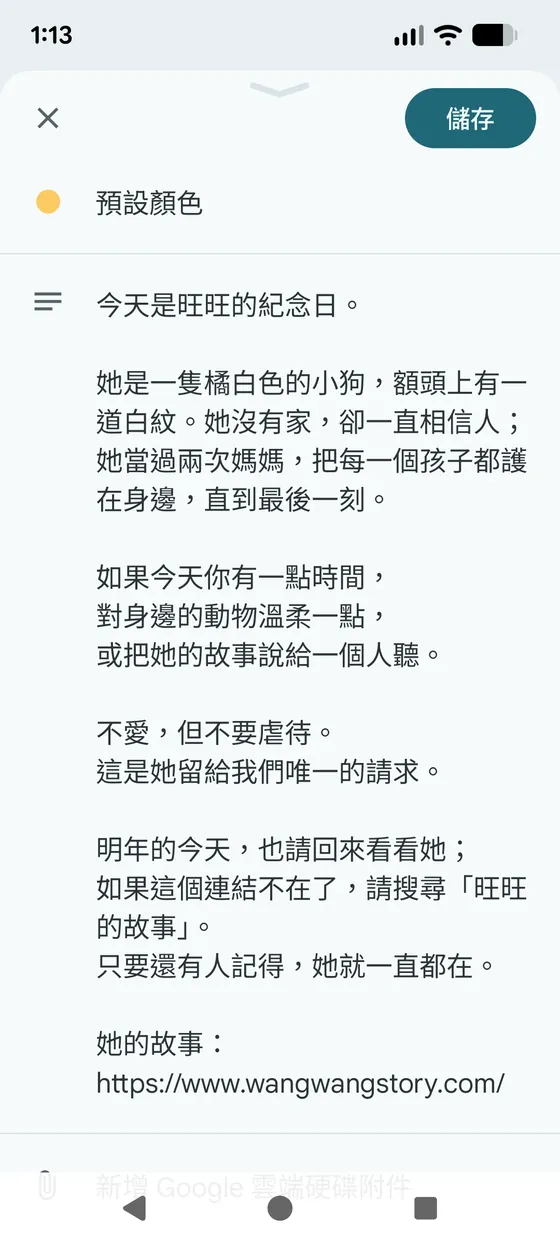
The description ends with this: if this link is ever gone, search for "Wangwang's story". Even if the site one day disappears, someone will still think of her on that day.
Every additional person who remembers her gives a little more strength to "You do not have to love every animal. Just do not harm them." The share buttons live in three places, and they are the same everywhere.
| Button | What happens |
|---|---|
| Share | Brings up your phone's share sheet. What goes out is a short introduction plus the link — not a bare URL |
| Copy link | Copies that same "text + link", so it stays intact wherever you paste it |
| Social buttons | Open that platform's share window directly |
| Invite by email | Opens your mail app with the subject and body already filled in |
Her story exists in eleven languages. You don't have to build the URL yourself.
Switch the language in the menu, and the URL automatically becomes that language's version. Then just tap share or copy link — what goes out is that language's URL with that language's text.
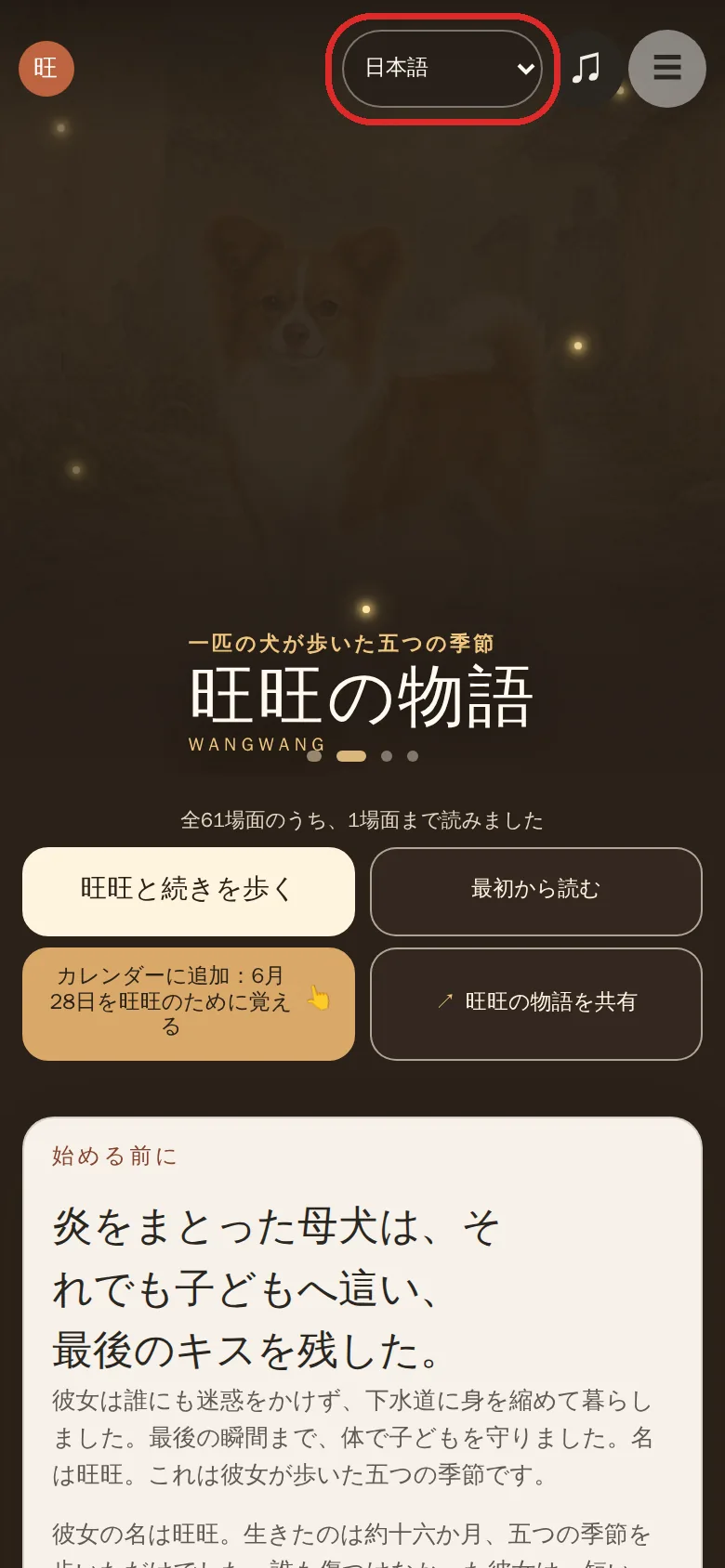
| Language | Story | Light page |
|---|---|---|
| 繁體中文 | Story | Light page |
| English | Story | Light page |
| Türkçe | Story | Light page |
| Deutsch | Story | Light page |
| Español | Story | Light page |
| Français | Story | Light page |
| 日本語 | Story | Light page |
| 한국어 | Story | Light page |
| Русский | Story | Light page |
| ไทย | Story | Light page |
| Tiếng Việt | Story | Light page |
| Português | Story | Light page |
The light page also exists in all eleven languages. If you just want to ask someone to keep this day, sending the light page URL is the shortest path.
Write what you want to tell that person, pick a language, and tap copy — the URL attaches itself at the end.
Copy the whole block below and paste it into ChatGPT or Gemini. It will translate your words into that language and swap the URL at the end for that language's version — then just paste the result to them.
Why swap the URL? If what they open is in a language they can't read, they have to find the language switch themselves. Give them the URL in their language, and it opens in a version they can read right away.
Links expire, get truncated, get blocked by platforms. But as long as her story is out there, a search will find it.
When you're telling someone in person, you don't have to read out a long URL. Just say: "Search for wangwangstory.com."
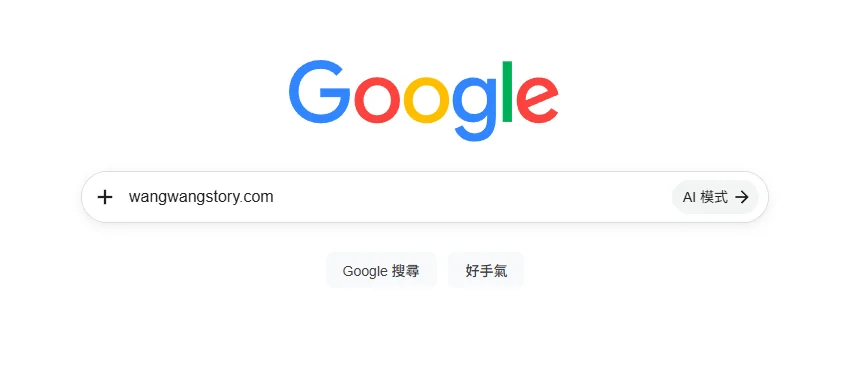
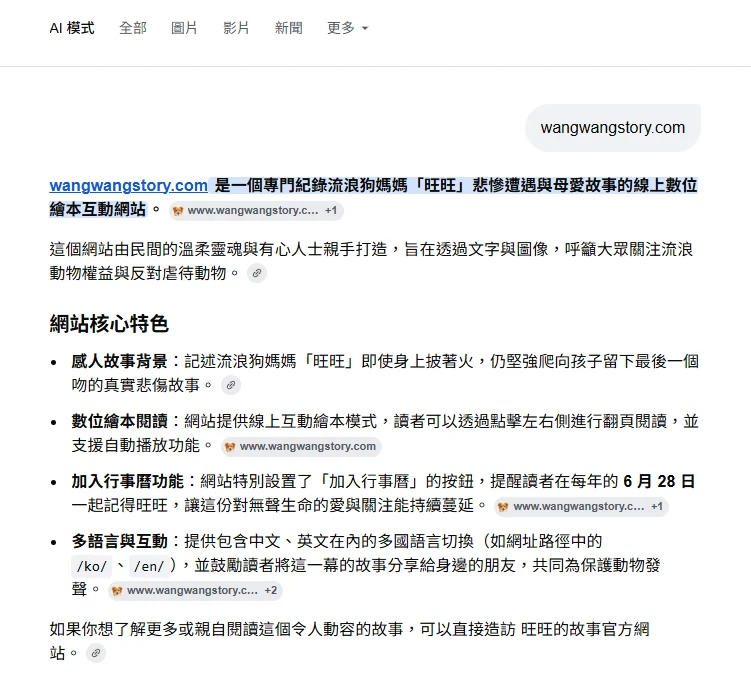
Out loud, over the phone, on a slip of paper — searching "wangwangstory.com" will find it. Searching "Wangwang's story" usually works too.
This address will always be here. If you ever forget it, search "wangwang story" and you'll find your way back.
In-app browsers — Facebook, Instagram, Threads, LINE — have no download manager and none of your logins, so all four calendar options fail here. Open this in your normal browser (Safari or Chrome) and it takes one tap.